Minerva · Mobile App Guide
Set up the Minerva mobile app — in six easy steps
For staff, students, and parents alike — attendance, fees, homework, exam results, and announcements, all in one place. The same six steps work for every account type; setup takes about five minutes.
-
Install the Minerva app on your phone
Search for “Beebasoft Minerva” in your phone's app store, or use the links below.
Android: play.google.com/store/apps/details?id=com.beebasoft.minervaerp
iPhone: apps.apple.com/app/beebasoft-minerva/id6767286432 -
Open your institution's login portal
On a computer or another device, go to amacedu.beebasoft.com. Both the Staff Login and the Student / Parent Login pages show a QR code under “Scan to set up Minerva mobile app”.
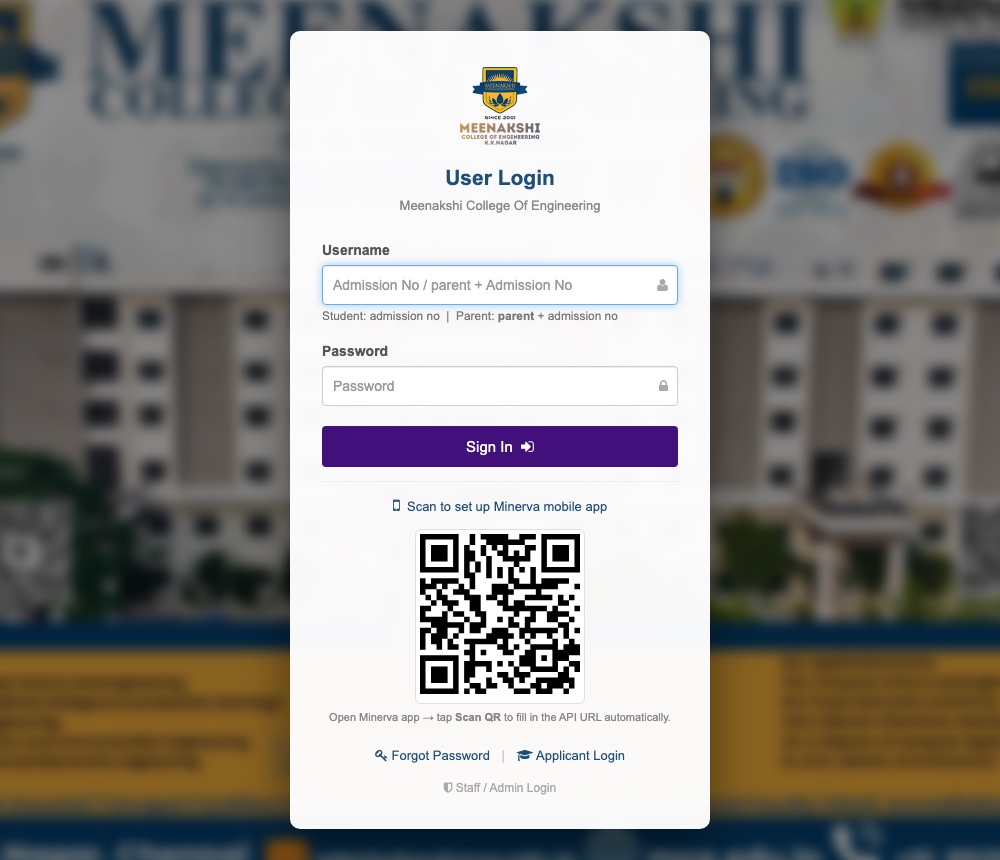 The portal login page — the QR code is below the Sign In button.
 -
Scan the QR code from the Minerva app
Open the Minerva app and tap Scan QR Code, then point your phone's camera at the QR code on the portal page.
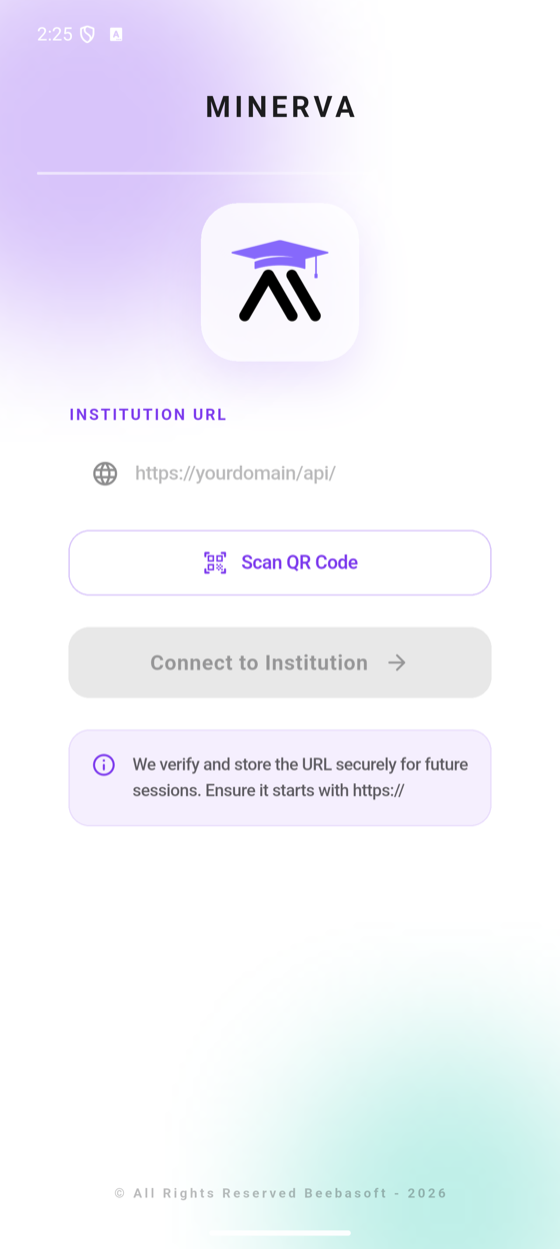 Tap “Scan QR Code”.
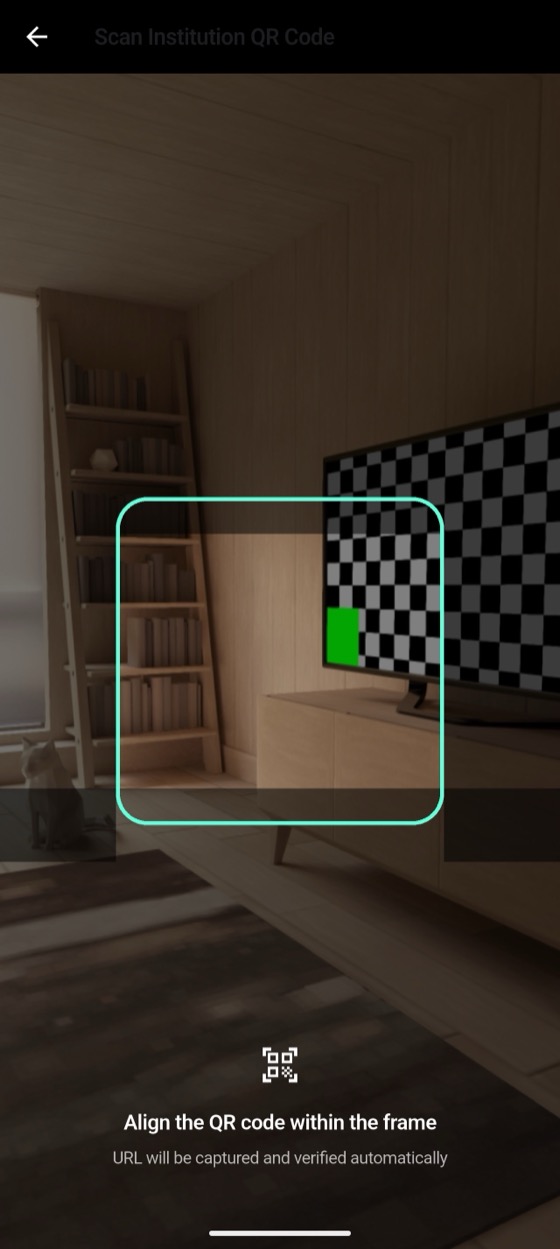 Align the QR inside the frame.
 -
Tap “Connect to Institution”
Your institution's address fills in automatically and a green tick confirms it was verified. Tap Connect to Institution.
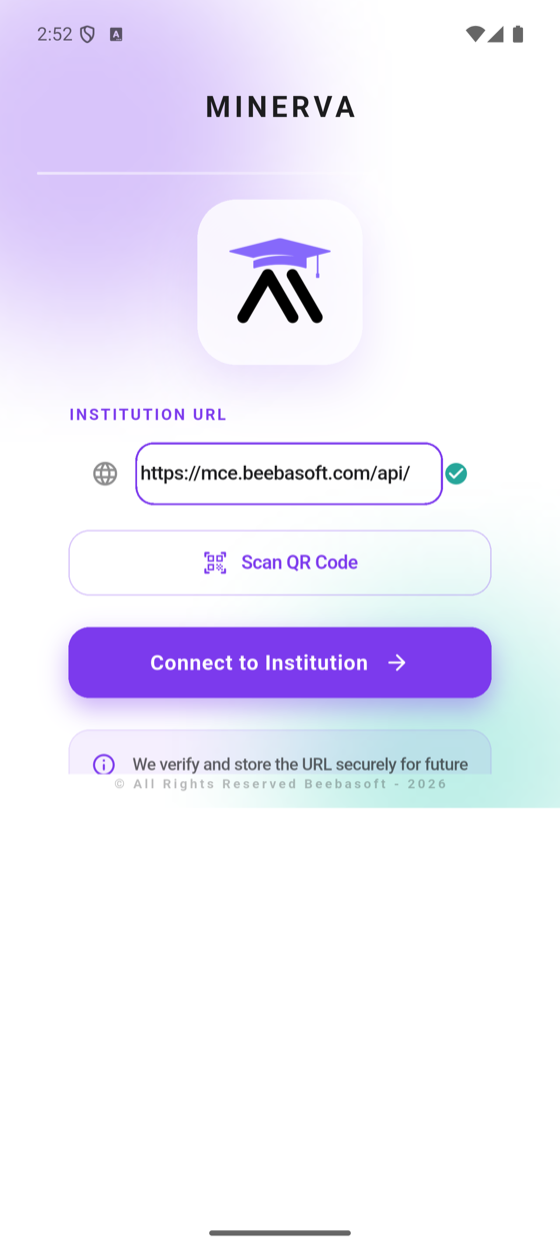 Verified — ready to connect.
 -
Check that your school's logo appears
✓The sign-in screen now shows your school or college logo — that's how you know you're connected to the right institution.
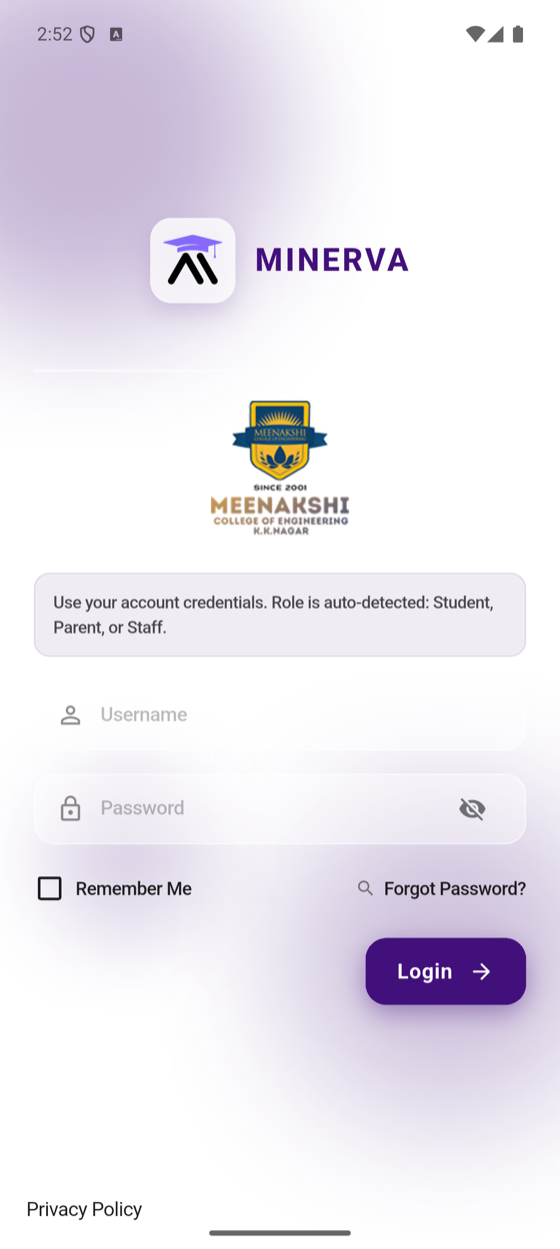 Your institution's logo on the sign-in screen.
 -
Sign in with your username and password
Enter the username and password provided by your institution and tap Login. The app detects automatically whether it is a Student, Parent, or Staff account. That's it — you're connected.
Need help?
- Don't have your login details? Contact your school or college office — they will provide your username and password.
- Forgot your password? The school office can reset it for you.
- Wrong logo appeared after scanning? Make sure you scanned the QR code from your own institution's portal page, then try again.