Minerva · Getting Started
Accessing the portal — your first steps
Everything in Minerva starts from your institution's website. Here's how students, parents, and staff reach their portal, sign in, and find help.
Find the ERP Login on your institution's website
Open your school or college's website and look for the ERP Login menu. It has two options:
- Student / Parent Login — for students and their parents.
- Staff Login — for teachers and all other staff.
Choosing one takes you to the matching sign-in page below. Your institution may also share the portal address directly. For this institution it is amacedu.beebasoft.com.
Student / Parent sign-in
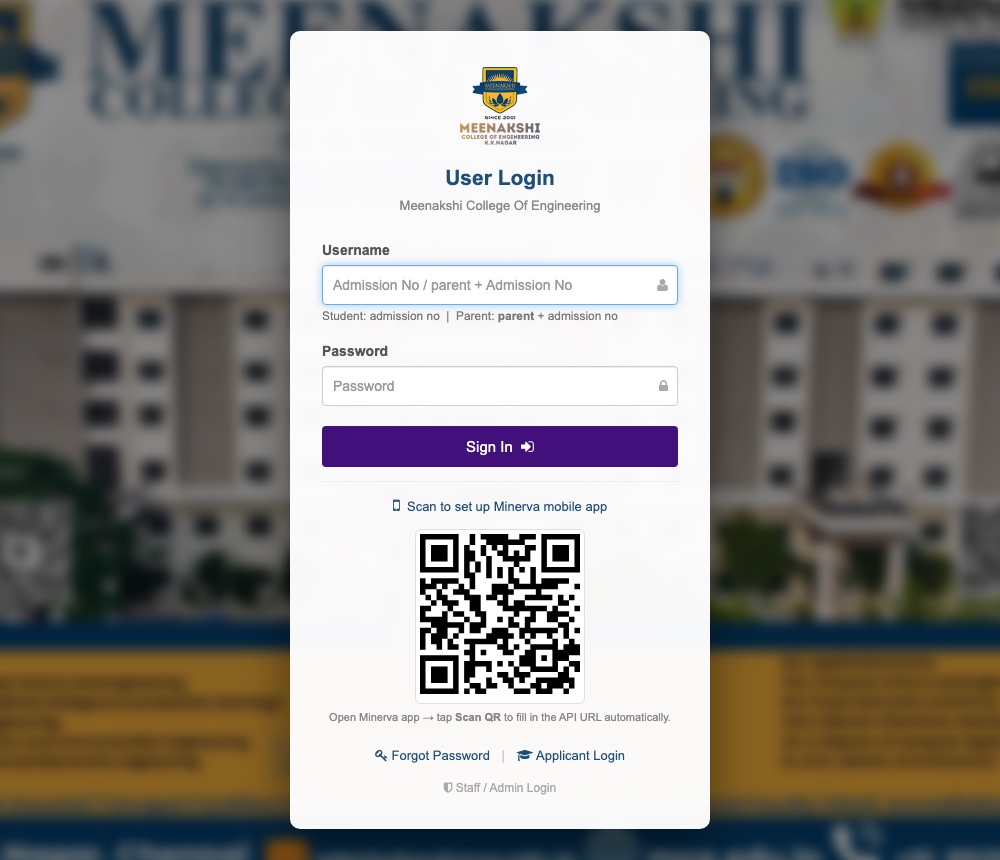
The Student / Parent Login page asks for a username and password:
- Students sign in with their admission number as the username.
- Parents sign in with parent + the admission number (e.g.
parent311423104055) — the hint under the username box on the login page shows the exact format. - The password is provided by your institution. Use Forgot Password on the page, or contact the school office, if you don't have it.
- After signing in you land on the student dashboard — see the Student Portal manual for everything you can do there.
Staff sign-in
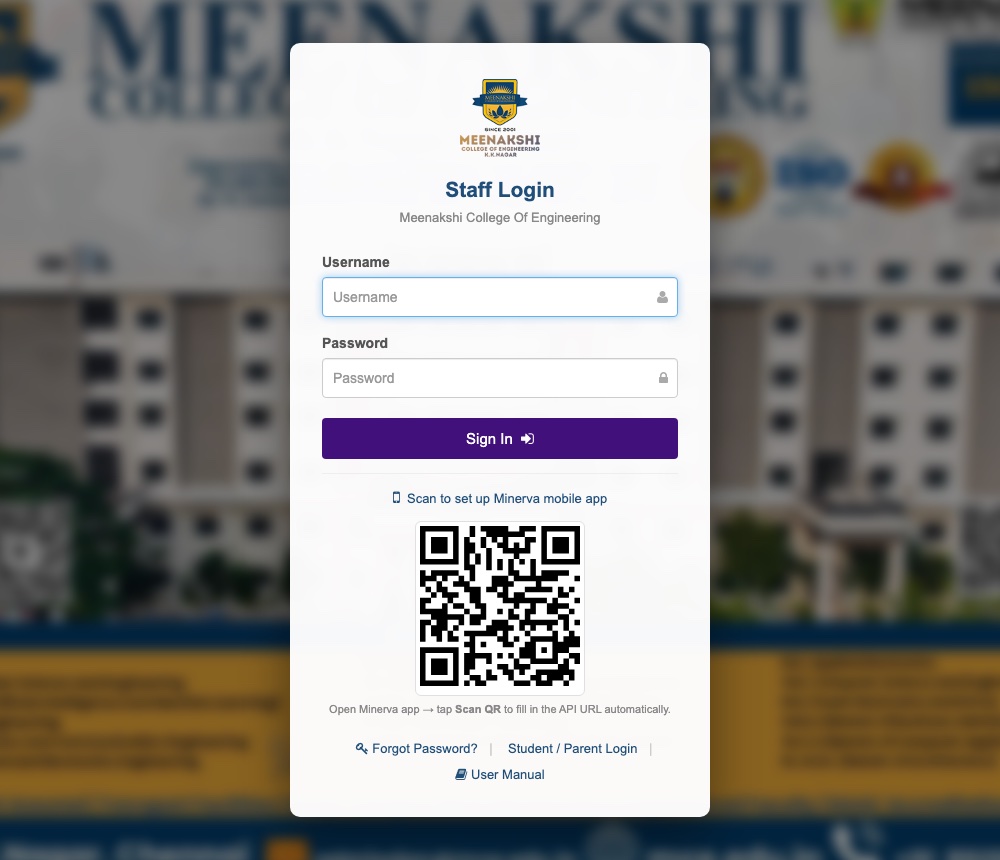
The Staff Login page uses the username and password issued when your account was created by the institution's administrator (under Human Resource → Staff Directory).
- Enter your username and password and press Sign In.
- What you see after signing in depends on your role — see the Staff manual's roles overview.
- Use Forgot Password? on the page if you're locked out, or ask your administrator to reset it.
Prefer the mobile app?
Both login pages show a QR code that connects the Minerva mobile app to your institution in one scan — see the Mobile App Setup guide for the six-step walkthrough.
Where to find this documentation
Every login page carries a User Manual link (bottom of the sign-in card) that opens this manual. Use the sidebar on the left to jump between the Mobile App guide, the Student Portal manual, and the Staff manual — no sign-in needed to read any of it.
Need help?
- Can't find the ERP Login menu? Ask your institution's office for the direct portal address.
- Sign-in fails? Check the username format above; passwords are case-sensitive. The office (or administrator, for staff) can reset your password.