Minerva · Staff Manual
Student Information
Admit and manage students: search, admission, profile edits, disabling, categories and houses, and multi-class handling.
Student Details
Search the student database by class, section, or keyword — the gateway to every student profile.
- Pick Class and Section (or type a name/admission no) and press Search.
- Click a student's name to open the full profile with its tabs (Profile, Fees, Exam, Documents, Timeline).
- Use the action buttons on a row to edit the record, add fees, or disable the student.

Student Admission
The admission form for enrolling a new student.
- Fill the admission number (or let the system generate it), class & section, and personal details.
- Add guardian details and upload documents/photo at the bottom.
- Press Save — the student and their login are created; fees can then be assigned from the Fees Collection module.

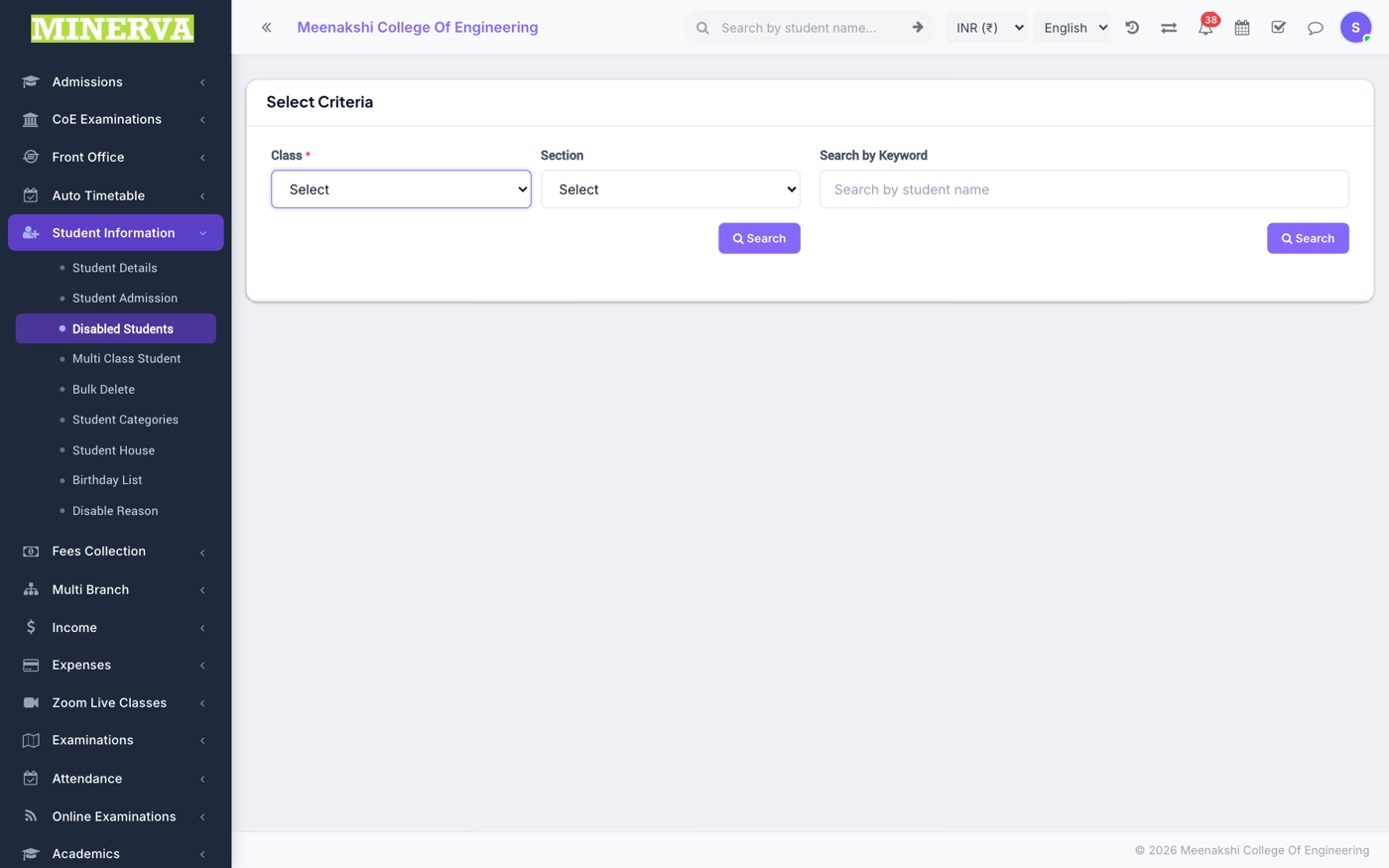
Disabled Students
Students removed from active rolls (TC issued, long absence). They keep their history and can be re-enabled.
- From a student's profile choose Disable and pick a reason (maintained under Disable Reason).
- Use this list to review or re-enable a student.
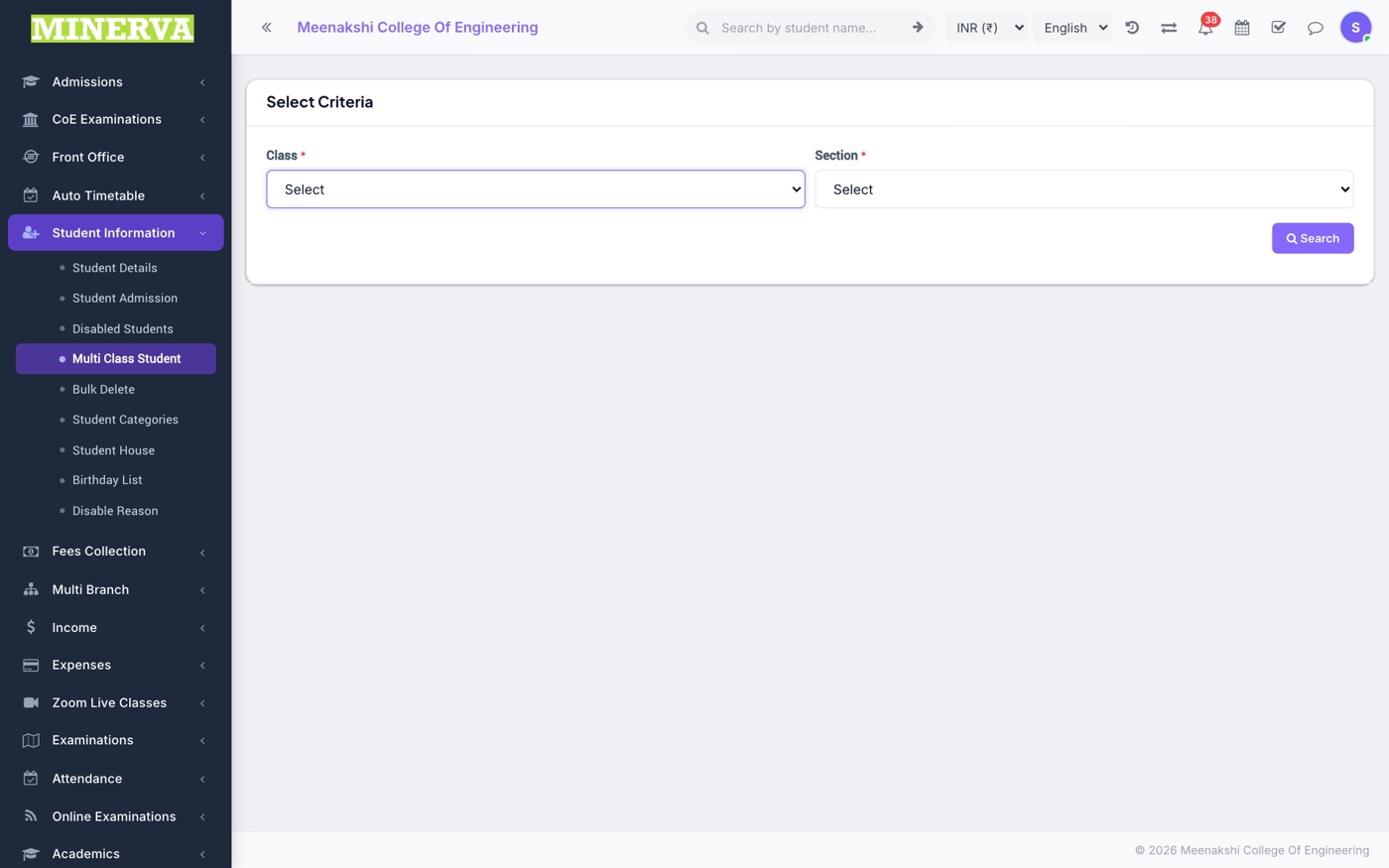
Multi Class Student
Enrol one student in more than one class at the same time (e.g. an add-on course).
Bulk Delete
Permanently delete many student records at once — use with care; prefer disabling for normal exits.

Categories, Houses & Reasons
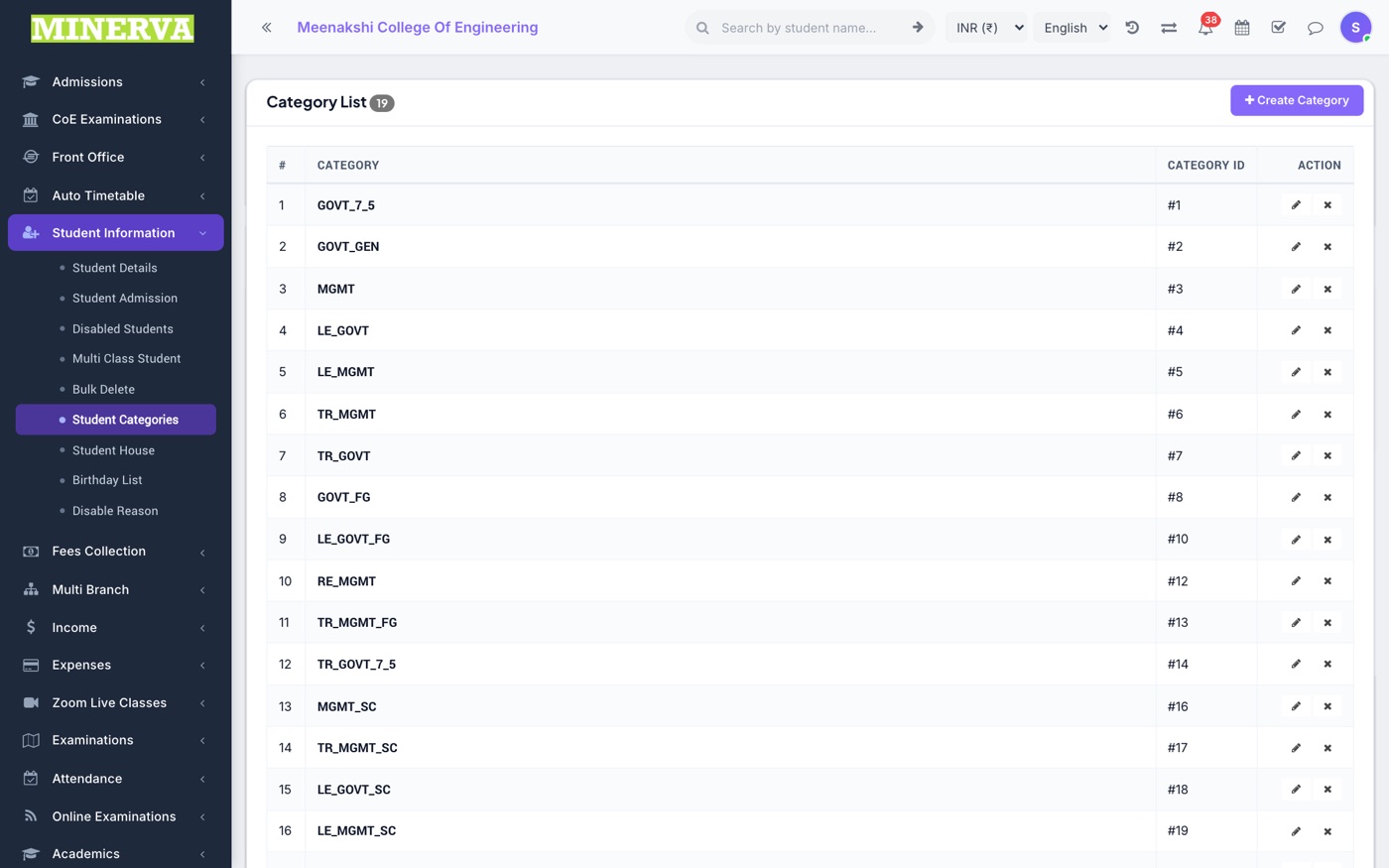
Master lists used on the admission form: Student Categories (e.g. RTE / Management), Student House, and Disable Reason — each a simple add/edit/delete list.
Birthday List
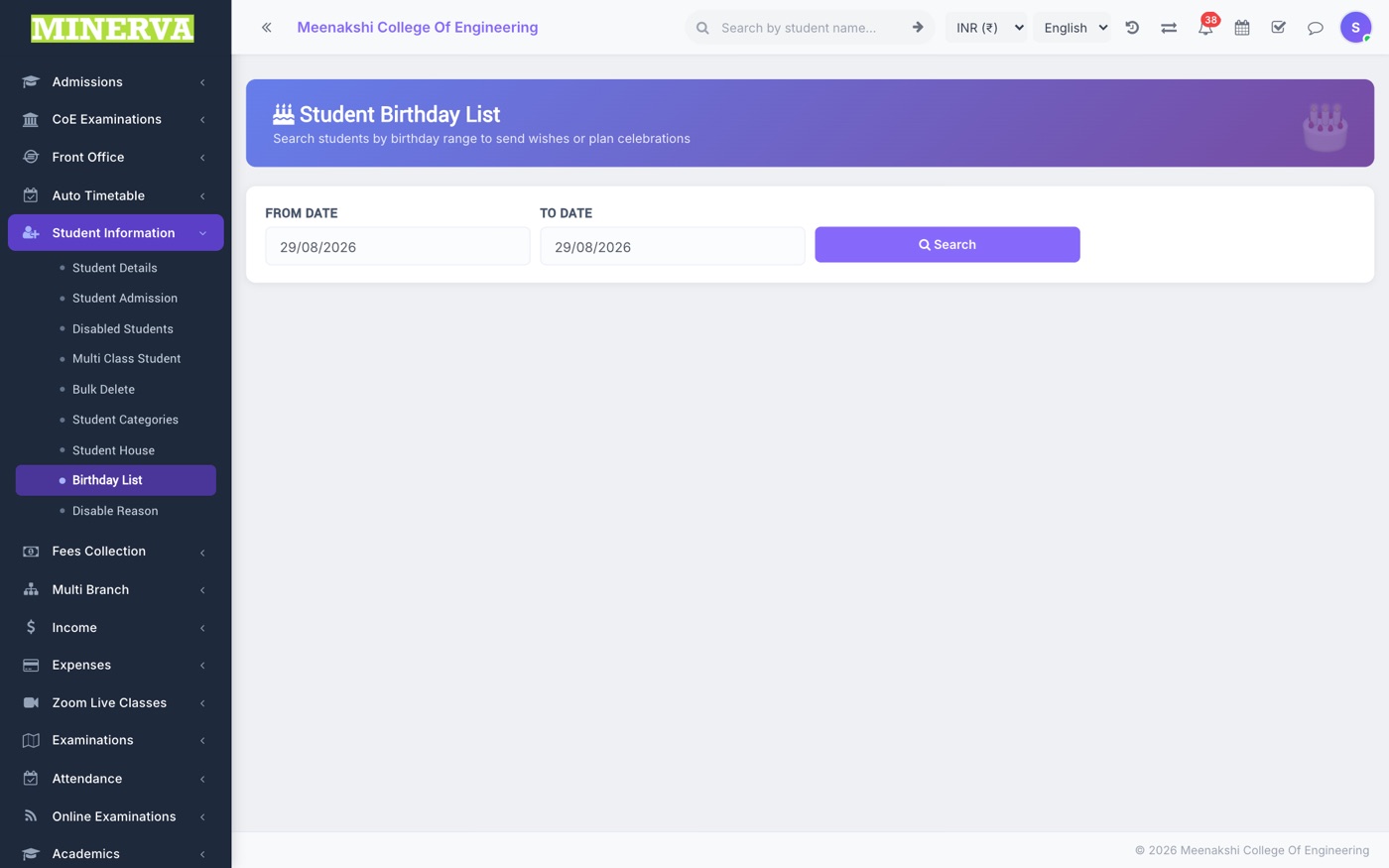
Today's and upcoming student birthdays, ready for announcements.